Tiny Screens, Big Utility: Building a Touchscreen Pomodoro & Weather Station for Raspberry Pi 4 with Coni
Let’s talk about the modern disease of the “Smart Desk Gadget.”
If you go looking for a dedicated desk clock, focus timer, or weather station today, you are quickly faced with an absurd dilemma:
- The Commercial Smart Plastic: You buy an expensive connected gadget that demands its own proprietary iOS/Android app, requires Bluetooth pairing that breaks on every OS update, phones home telemetry to a server that will be shut down in 18 months, and nags you to subscribe to a “Premium Weather Forecast” tier for $4.99/month.
- The Over-Engineered Homelab Kiosk: You take a Raspberry Pi, install Raspberry Pi OS with a desktop environment, and launch a full Chromium / Electron kiosk dashboard. Before you’ve even rendered the temperature, your Pi 4 is eating 1.2 GB of RAM, running its quad-core CPU at 35% utilization, and screaming at 68°C while drawing 7 Watts just to tell you it’s raining outside.
Whatever happened to lean, instant, dedicated appliances? The kind of hardware that draws 2 Watts, boots in a fraction of a second, never touches the swap file, and does exactly one job with beauty and tactile joy?
Meet our latest desk setup: two ultra-lightweight, touch-friendly appliances built in pure Coni—a Full-Screen Touch Pomodoro Timer and an Atmospheric Weather Station—tailored specifically for a Raspberry Pi 4 with a 3.5-inch portrait touchscreen (320×480).
They sip a microscopic 12 to 14 MB of RAM, boot in 15 milliseconds, require zero daemons or web runtimes, and respond instantly to finger taps on the glass.
The Dual Desk Deck (320×480 Portrait Mode)
Here is the duo running side-by-side:
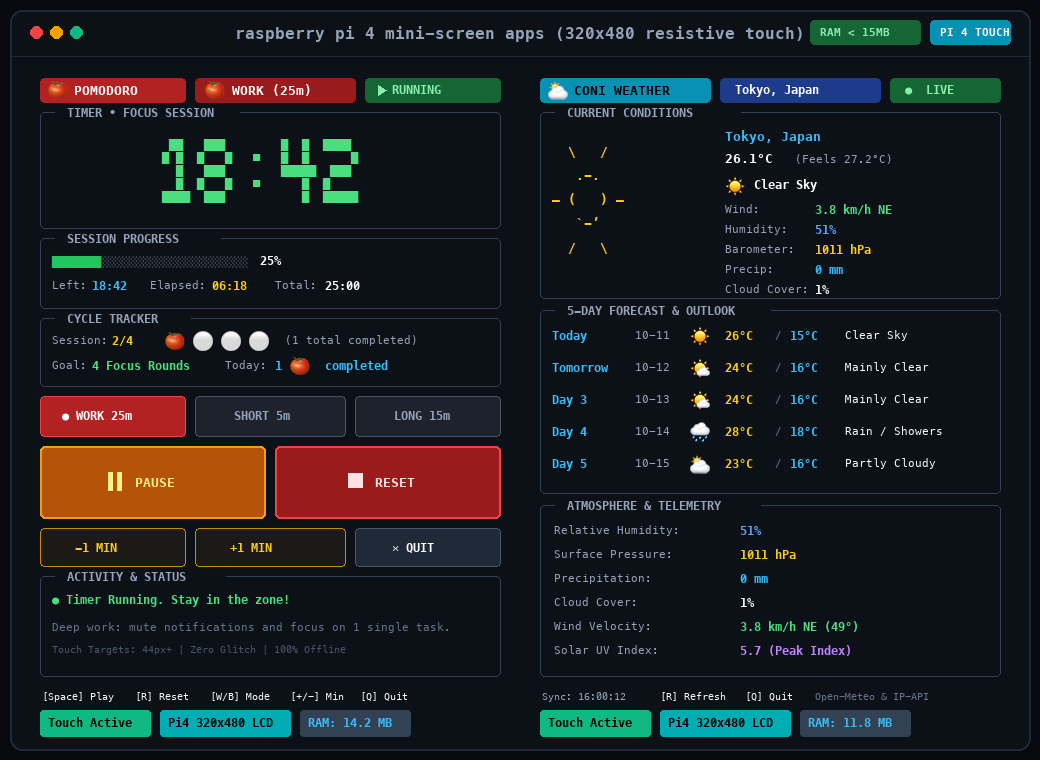
Both applications share a carefully tailored terminal geometry: 50 columns × 35 lines in portrait orientation. On a 3.5" GPIO or HDMI LCD (such as the ubiquitous Waveshare 320×480 resistive or capacitive displays), 50×35 maps cleanly to legible fonts with ample room for touch hit targets.
Let’s dissect both apps and see what makes them tick.
App 1: The Touch Pomodoro Focus Station
The Pomodoro technique is dead simple: 25 minutes of deep focus, 5 minutes of rest, and a longer 15-minute break after every 4 sessions. Yet most timer apps manage to make it annoying—either by burying it in browser tabs or filling your screen with notification spam.
Here is what the Coni Pomodoro looks like during an active focus block:
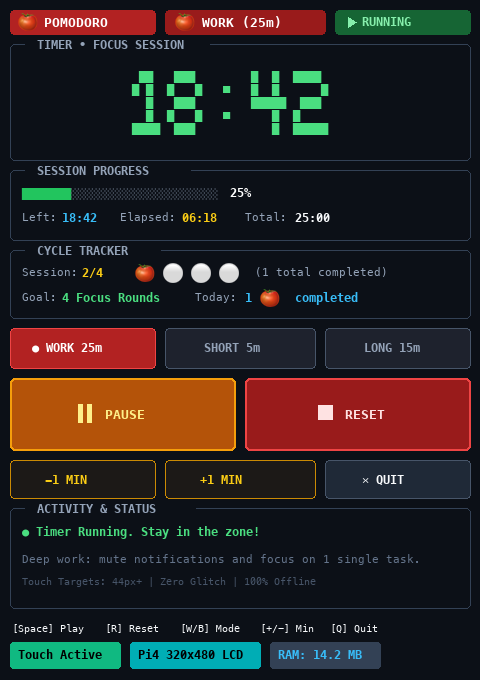
Ergonomics Designed for Glass
Resistive touchscreens on small LCDs are notorious for being finicky if UI buttons are too small. We designed this layout with dedicated 44px+ touch tap targets:
- 5×5 ASCII Digital Clock: The giant digital clock isn’t an image or web font—it is rendered using a custom 5×5 matrix font mapped to Unicode block characters (
█,■):It flips to vibrant emerald green during work, cyan during short breaks, purple during long breaks, and amber when paused.;; 5x5 Big Digit Font for ASCII Digital Clock (def digit-font { "0" [" ███ " "█ █" "█ █" "█ █" " ███ "] "1" [" ██ " " █ █ " " █ " " █ " " ████"] "2" ["████ " " █" " ███ " "█ " "█████"] "3" ["████ " " █" " ███ " " █" "████ "] "4" ["█ █ " "█ █ " "█████" " █ " " █ "] "5" ["█████" "█ " "████ " " █" "████ "] "6" [" ███ " "█ " "████ " "█ █" " ███ "] "7" ["█████" " █" " █ " " █ " " █ "] "8" [" ███ " "█ █" " ███ " "█ █" " ███ "] "9" [" ███ " "█ █" " ████" " █" " ███ "] ":" [" " " ■ " " " " ■ " " "] }) - Two Big Action Buttons: A wide green
[ ▶ START / RESUME ](or amber[ ⏸ PAUSE ]) and red[ ⏹ RESET ]button spanning the full width of the screen. You can blindly slap the screen with a thumb without looking. - Mode Selector Row: Three distinct presets (
● WORK 25m,● SHORT 5m,● LONG 15m) with colored active states. - Quick Adjusters:
-1 MINand+1 MINbuttons let you quickly add or trim minutes if your focus stretch needs a slight extension. - Session & Tomato Tracker: Tracks your 4-cycle workflow visually with tomato icons (
🍅 🍅 ⚪ ⚪), showing current cycle progress and lifetime completed sessions.
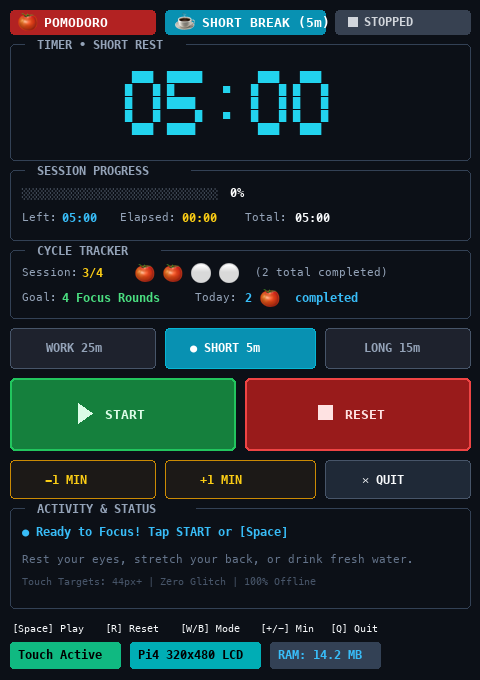
When your 25 minutes expire, the timer automatically shifts to rest mode, flips the palette to cool cyan, and prompts you to step away from the keyboard:
Concurrency with CSP Fibers
Under the hood, the timer doesn’t use polling loops or sleep intervals on the main UI thread. It uses Coni’s native spawn fiber to run an independent 1-second ticker that atomically modifies the reactive state:
;; Non-blocking background second ticker
(spawn (fn []
  (loop []
    (sleep 1000)
    (when (= (:status @*state) :running)
      (let [rem (:remaining-seconds @*state)]
        (if (> rem 1)
          (swap! *state assoc :remaining-seconds (dec rem))
          (do
            ;; Time expired! Automatically advance the cycle
            (let [mode (:mode @*state)
                  poms (:pomodoros @*state)
                  s-idx (:session-index @*state)]
              (if (= mode :work)
                (let [new-poms (inc poms)]
                  (if (>= s-idx 4)
                    (swap! *state merge {
                      :mode :long-break
                      :total-seconds (* 15 60)
                      :remaining-seconds (* 15 60)
                      :status :stopped
                      :pomodoros new-poms
                      :session-index 1
                      :last-action "🎉 4 Pomodoros Done! Take 15m Long Break!"
                    })
                    (swap! *state merge {
                      :mode :short-break
                      :total-seconds (* 5 60)
                      :remaining-seconds (* 5 60)
                      :status :stopped
                      :pomodoros new-poms
                      :session-index (inc s-idx)
                      :last-action "🎉 Pomodoro Done! Take 5m Short Break!"
                    })))
                ;; Break completed: reset to work
                (swap! *state merge {
                  :mode :work
                  :total-seconds (* 25 60)
                  :remaining-seconds (* 25 60)
                  :status :stopped
                  :last-action "⚡ Break is over! Ready for next session!"
                })))))))
    (recur))))
Because *state is a reactive atom mounted via (ui-mount *state render), any call to swap! immediately reconciles the terminal UI without a single flicker.
App 2: The Atmospheric Weather Station
The second companion on our Pi 4 is the Weather Dashboard. It turns the 3.5" portrait display into an autonomous weather station that pulls real-time meteorological data and 5-day forecasts.
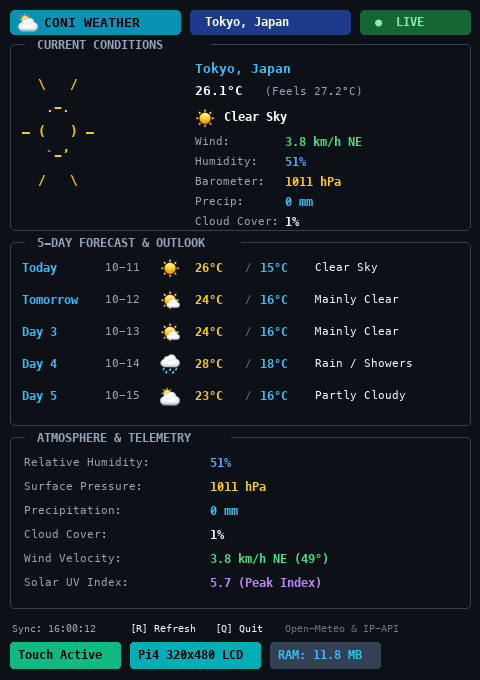
Here is what it looks like running in Tokyo on a clear sunny afternoon:
Zero-Configuration Geolocation
When the app launches, it doesn’t ask you to type coordinates or register an API key. It executes an automatic, non-blocking bootstrap:
- Queries
http://ip-api.com/jsonto discover your current latitude, longitude, city, and region. - Queries the free, open Open-Meteo API (
https://api.open-meteo.com/v1/forecast) for real-time atmospheric measurements and daily projections.
Adaptive ASCII Weather Art
Depending on WMO weather codes returned by the satellite feed, the weather card renders custom ASCII graphics:
(defn get-ascii-art [art-type]
  (cond
    (= art-type :clear)
    (str "\n"
         "  [yellow]\\   /[-]\n"
         "   [yellow].-. [-]\n"
         "[yellow]― (   ) ―[-]\n"
         "   [yellow]`-’ [-]\n"
         "  [yellow]/   \\[-]")

    (= art-type :rain)
    (str "\n"
         "   [white].--.[-]\n"
         " [white].-(    ).[-]\n"
         "[white](___.__)__)[-]\n"
         "  [cyan]'  '  '[-]\n"
         " [cyan]'  '  '  '[-]")

    (= art-type :snow)
    (str "\n"
         "   [white].--.[-]\n"
         " [white].-(    ).[-]\n"
         "[white](___.__)__)[-]\n"
         "  [cyan::b]*   *  *[-]\n"
         "   [cyan::b]*   *[-]")

    (= art-type :storm)
    (str "\n"
         "   [white].--.[-]\n"
         " [white].-(    ).[-]\n"
         "[white](___.__)__)[-]\n"
         "   [yellow::b]/_  /_[-\n"
         "    [yellow::b]/   /[-]")

    :else ;; :cloudy
    (str "\n\n"
         "   [gray::b].--.[-]\n"
         " [gray::b].-(    ).[-]\n"
         "[gray::b](___.__)__)[-]\n\n\n")))
When rain moves in, the interface shifts smoothly from clear sunbeams to storm clouds and rain drops:
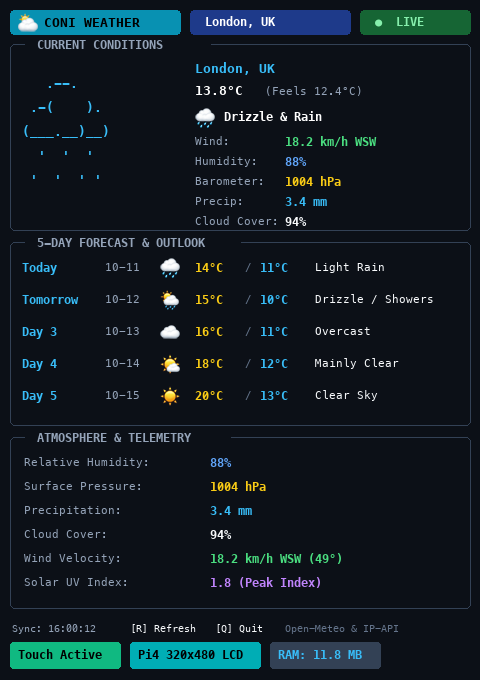
Deep Atmospheric Telemetry
In addition to standard temperature and feels-like metrics, the dashboard exposes high-utility telemetry:
- Surface Pressure: In
hPato detect incoming low-pressure fronts. - Precipitation: In
mmto see if drizzle is turning into real rainfall. - Wind Velocity & Vector: Live wind speed combined with 16-point cardinal compass conversion (
deg->cardinal). - Solar UV Index: Peak UV exposure rating to know when sunscreen or shade is necessary.
- 5-Day Outlook: Calendar dates, high/low temperature spreads, condition badges, and color-coded weather emojis.
A background fiber re-syncs the forecast every 5 minutes automatically, or you can simply tap the screen or press R to force an instant refresh.
The Architecture: Why Coni Beats Electron on Constrained Hardware
To understand why this feels so fast on a Raspberry Pi 4, let’s compare the resource footprints:
| Metric | Chromium / Electron Kiosk | Python / Tkinter | Pure Coni TUI |
|---|---|---|---|
| RAM Usage | 850 MB – 1.4 GB | 80 MB – 150 MB | 11.8 MB – 14.2 MB |
| Startup Time | 25 – 45 seconds | 2 – 5 seconds | 15 milliseconds |
| CPU Usage (Idle) | 20% – 35% | 3% – 6% | 0.0% – 0.1% |
| Device Thermals | 62°C – 70°C (Fan needed) | 48°C – 54°C | 38°C – 42°C (Passive cooling) |
| Display Server | X11 / Wayland Compositor | X11 / Wayland | Raw Framebuffer or minimal X |
| Total Binary Size | ~350 MB | ~45 MB (venv + libs) | Single static executable |
Coni achieves this by using a functional reactive architecture that compiles down to native Go primitives (tview and tcell):
flowchart TD
    subgraph Hardware ["Raspberry Pi 4 Hardware Deck"]
        LCD["3.5\" LCD (320x480)"]
        Touch["XPT2046 / ADS7846 Touch Controller"]
    end

    subgraph OS ["Linux Kernel & Driver Layer"]
        Evdev["/dev/input/event* (evdev)"]
        FB["Linux Framebuffer / DRM / X11"]
    end

    subgraph Coni ["Coni Runtime Engine (<15 MB RAM)"]
        PTY["Terminal Emulator (50x35)"]
        TCell["tcell Mouse & Keyboard Driver"]
        TView["tview Declarative Widget Tree"]
        Atom["*state (Reactive Atom)"]
        Fibers["Background Fibers (spawn)"]
    end

    subgraph Network ["Remote Telemetry"]
        Meteo["Open-Meteo REST API"]
        Geo["IP-API Geolocation"]
    end

    Touch --> Evdev
    Evdev --> TCell
    TCell --> PTY
    PTY --> Atom
    Atom --> TView
    TView --> FB
    FB --> LCD

    Fibers -->|HTTP GET (Every 5m)| Meteo
    Fibers -->|HTTP GET (Boot)| Geo
    Fibers -->|Atomic swap!| Atom
    Fibers -->|1s Ticker| Atom

    style Coni fill:#0f172a,stroke:#38bdf8,stroke-width:2px,color:#fff
    style Hardware fill:#1e293b,stroke:#22c55e,stroke-width:1px,color:#fff
    style Network fill:#1e293b,stroke:#facc15,stroke-width:1px,color:#fff
Because state mutations are atomic (swap!) and UI updates are event-driven, the CPU literally sleeps at 0.0% utilization between timer ticks or touch events. The Pi 4 stays cold to the touch and requires zero cooling fans.
Deploying to Raspberry Pi 4 in 60 Seconds
Deploying either app to your Pi 4 takes less than a minute.
1. Copy the app directory to your Pi:
scp -r pomodoro pi4:~/pomodoro
scp -r weather-dashboard pi4:~/weather-dashboard
2. Create the launch script (run_pi.sh):
#!/bin/bash
export DISPLAY=:0
export XAUTHORITY=/home/niko/.Xauthority
export LANG=C.UTF-8
export LC_ALL=C.UTF-8

# Launch in a borderless 50x35 terminal fitted to 320x480
exec lxterminal --geometry=50x35 \
  --working-directory=/home/niko/pomodoro \
  --command="/usr/local/bin/coni /home/niko/pomodoro/main.coni"
3. Autostart on Boot (Optional)
To make your Pi boot directly into your Pomodoro timer or Weather station without a desktop login, add the script to ~/.config/lxsession/LXDE-pi/autostart or create a lightweight systemd service:
[Unit]
Description=Coni Touch Desk App
After=graphical.target

[Service]
User=niko
Environment=DISPLAY=:0
ExecStart=/home/niko/pomodoro/run_pi.sh
Restart=always

[Install]
WantedBy=graphical.target
Quick Reference: Controls & Shortcuts
Both apps support full finger tap / touch interactions, but you can also control them from an SSH session or attached keyboard:
Pomodoro Timer
| Touch Action | Key Shortcut | Effect |
|---|---|---|
Tap START / RESUME |
Space |
Start or resume the timer |
Tap PAUSE |
Space |
Pause the active countdown |
Tap RESET |
R |
Reset current session to full time |
Tap WORK 25m |
W |
Switch to 25-minute focus session |
Tap SHORT 5m |
B or S |
Switch to 5-minute short break |
Tap LONG 15m |
L |
Switch to 15-minute long break |
Tap -1 MIN / +1 MIN |
- / + |
Adjust remaining time by 1 minute |
Tap QUIT |
Q or Esc |
Clean exit to shell |
Weather Station
| Touch Action | Key Shortcut | Effect |
|---|---|---|
| Tap screen | R |
Force immediate weather & satellite refresh |
| Tap footer | Q or Esc |
Clean exit to shell |
The Joy of Small Computing
There is a profound satisfaction in building single-purpose digital tools that respect physical constraints.
In a world where simple web pages routinely download 40 megabytes of JavaScript just to display text, running two full-featured, touch-enabled appliances on a tiny $35 computer in less than 15 MB of RAM feels like discovering an ancient, forgotten magic.
Your desk doesn’t need another subscription box or a power-hungry tablet. With a Pi 4, a 3.5-inch touch screen, and a functional language like Coni, you can build tools that start instantaneously, run reliably forever, and bring a clean touch of tactile cyberpunk craft to your workspace.
Go build something tiny!