Goodnight PowerPoint: We Built a Zero-npm Slide Deck Engine in Pure Lisp
Everyone who has ever had to give a technical talk knows the specific modern agony of preparing slides.
You start with noble intentions. You have interesting ideas, working code, and an architecture you are genuinely proud of. But the moment you open PowerPoint, you enter a spiritual wasteland. You spend 40 minutes fighting against automatic bullet indentation, wondering why moving a text box two pixels to the right just caused a table on slide 4 to collapse into an alternate dimension.
Desperate for dignity, you switch to Keynote. It looks gorgeous, of course—until you realize you’ve spent an hour manually aligning rounded rectangles with a trackpad like a 19th-century oil painter, having written exactly zero lines of your actual presentation.
Then, one day, you discover the promised land: Marp.
“Write presentations in plain Markdown!” the website proclaims. You rejoice. You write three headings and a code block. And then you go to install the CLI:
npm install -g @marp-team/marp-cli
…and down comes the avalanche: 400 megabytes of Node.js dependencies, 1,400 nested packages in node_modules, a local Chromium installer, and seven npm security audit warnings notifying you that an abandoned transitive dependency from 2018 might have unlocked your smart refrigerator.
We asked ourselves the obvious question:
Why should presenting plain Markdown require an entire JavaScript industrial complex? What if the compiler, the directives parser, the themes, the presenter timer, the interactive slide grid, and the vector PDF export were all written in pure, native Coni Lisp?
Today, we added marp to the coni-cli-apps fleet: a standalone Markdown presentation engine built 100% in Coni. Zero Node.js. Zero npm. Instant startup.
Here is the story of how it works, how we built it, and what it looks like on stage.
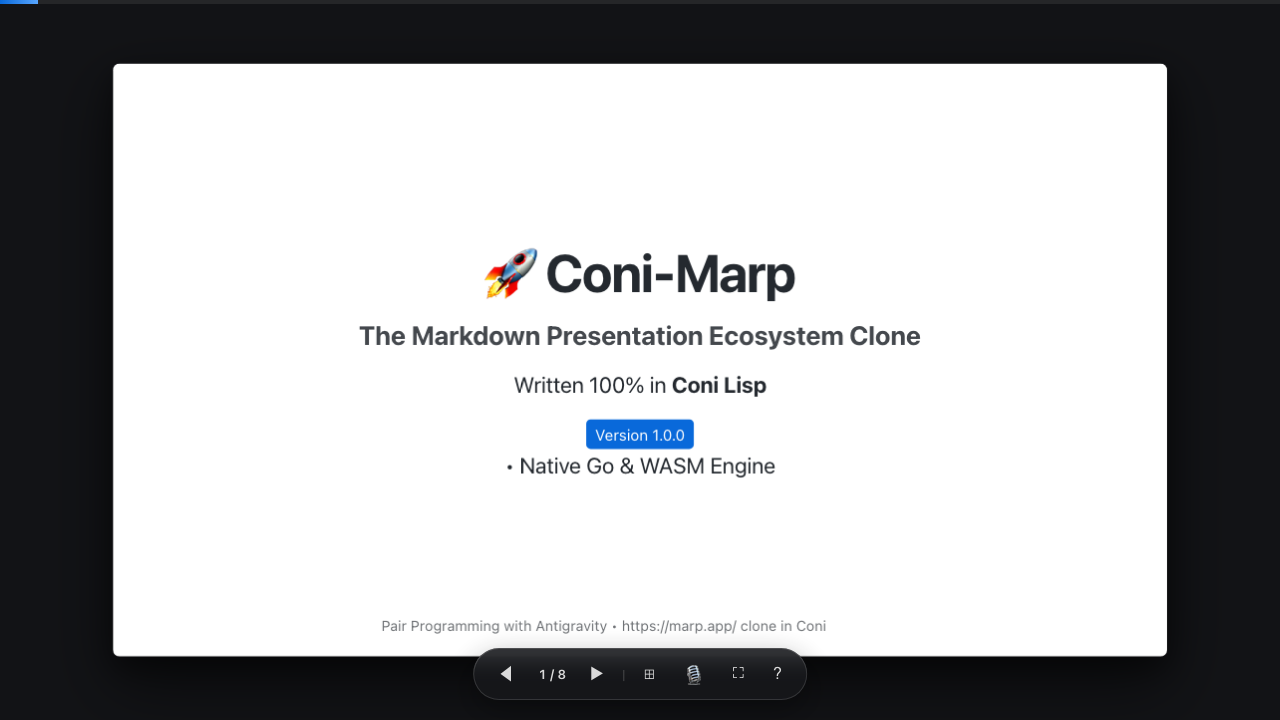
Act I: Markdown is Easy, Directives are Hard
At first glance, building a Markdown slide compiler sounds almost deceptively simple. After all, what is a slide deck? It’s just a Markdown file split by horizontal rules (---), right?
;; The naive implementation that will ruin your day
(defn naive-split [raw-markdown]
  (str/split raw-markdown "\n---\n"))
Except, in the real world of developer presentations, you frequently write slides that look like this:
# Let's talk about YAML frontmatter

```yaml
---
title: My Config
---
```
If your parser blindly splits on \n---\n, it slices straight through the middle of your code snippet, bifurcating your YAML block into two ruined, syntax-broken half-slides.
To do this right in pure Coni, we wrote a stateful code-fence tracker that scans line by line. It watches for opening and closing triple backticks (```) or tildes (~~~), tracking whether we are currently inside an active code block:
;; Coni-Marp: Safe slide splitting with code-fence awareness
(defn split-slides-safe [body]
  (let [lines (str/split-lines body)]
    (loop [remaining lines
           in-fence? false
           current-acc []
           slides-acc []]
      (if (empty? remaining)
        (let [final-slide (str/trim (str/join "\n" current-acc))]
          (if (pos? (count final-slide))
            (conj slides-acc final-slide)
            slides-acc))
        (let [line (first remaining)
              trimmed (str/trim line)
              fence-toggle? (or (str/starts-with? trimmed "```")
                                (str/starts-with? trimmed "~~~"))
              next-in-fence (if fence-toggle? (not in-fence?) in-fence?)]
          (if (and (not in-fence?) (is-slide-divider? trimmed))
            (recur (rest remaining)
                   false
                   []
                   (conj slides-acc (str/trim (str/join "\n" current-acc))))
            (recur (rest remaining)
                   next-in-fence
                   (conj current-acc line)
                   slides-acc)))))))
With this, you can put YAML frontmatters, SQL migrations, git diffs, or nested horizontal rules inside code snippets all day long—the slide boundaries remain rock solid.
Act II: Spot Directives & The Magic of Scoping
The real magic of Marp isn’t just turning headings into slides; it’s directives.
Directives let you control layout, pagination, headers, footers, and themes right from Markdown comments or YAML frontmatter:
---
marp: true
theme: default
size: 16:9
paginate: true
header: "✨ Coni-Marp Ecosystem"
footer: "Coni Lisp • Native Engine"
---

<!-- _class: invert -->
<!-- _backgroundColor: "#0d1117" -->
<!-- _header: "Deep Dive" -->
<!--
Speaker Notes:
Explain the difference between global and spot directives.
-->

# 🌓 Slide-Scoped Directives
Notice the underscore (_) in <!-- _class: invert -->. In Marp terminology, that is a spot directive.
A global directive (theme: default or paginate: true) applies to every slide in the presentation. But when prefixed with an underscore (_class or _backgroundColor), it applies strictly to the current slide, resetting automatically on the next ---.
Our parser decomposes each slide section into a clean metadata map:
- Spot Directive Extraction: Regex extraction of key-value pairs inside HTML comments.
- Speaker Notes Extraction: Capturing multi-line speaker notes from
<!-- Speaker Notes: ... -->blocks and stripping them out of the visible DOM. - Class Merging: Combining theme classes, custom CSS layout classes (
lead,invert), and split backgrounds (split-left,split-right).
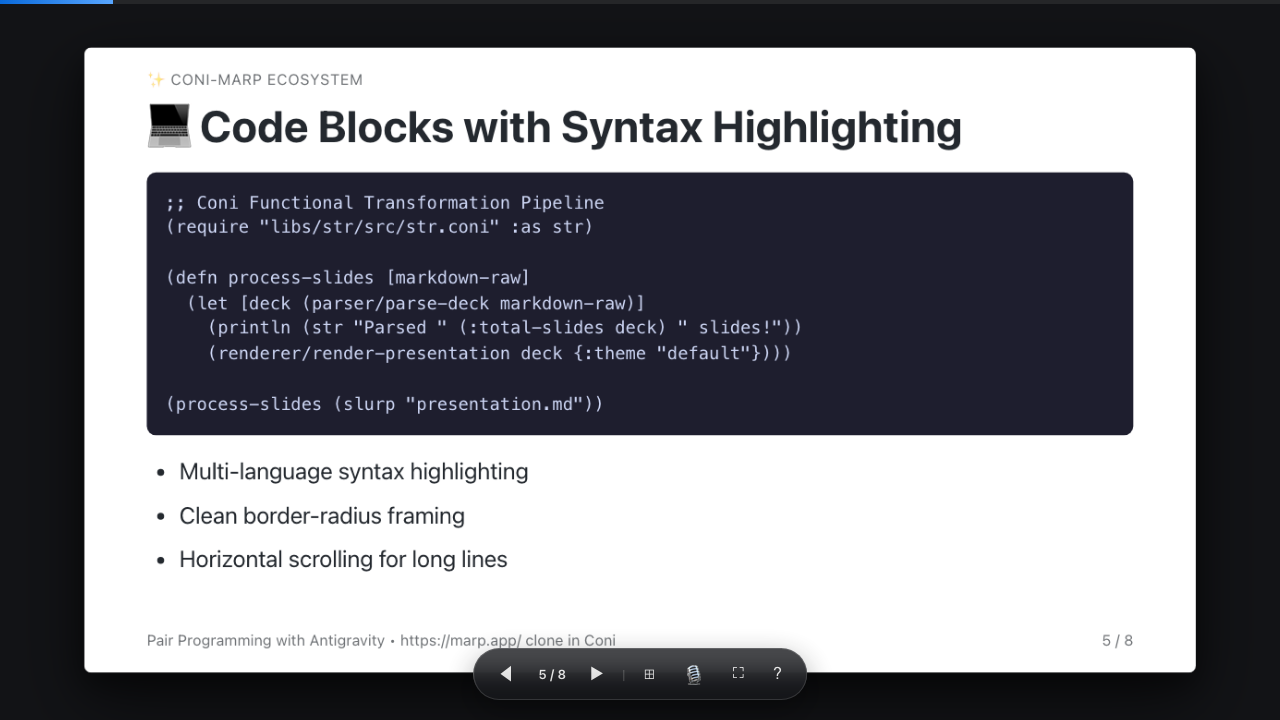
Here is what the compiled code block looks like in the browser, featuring syntax highlighting, rounded borders, and horizontal scrolling:
Act III: Themes That Don’t Look Like 2004
A presentation engine is only as good as its typography. If your slides look like default Times New Roman on a blinding #FFFFFF canvas, nobody will remember what you said.
Coni-Marp comes with 5 built-in, hand-tuned themes:
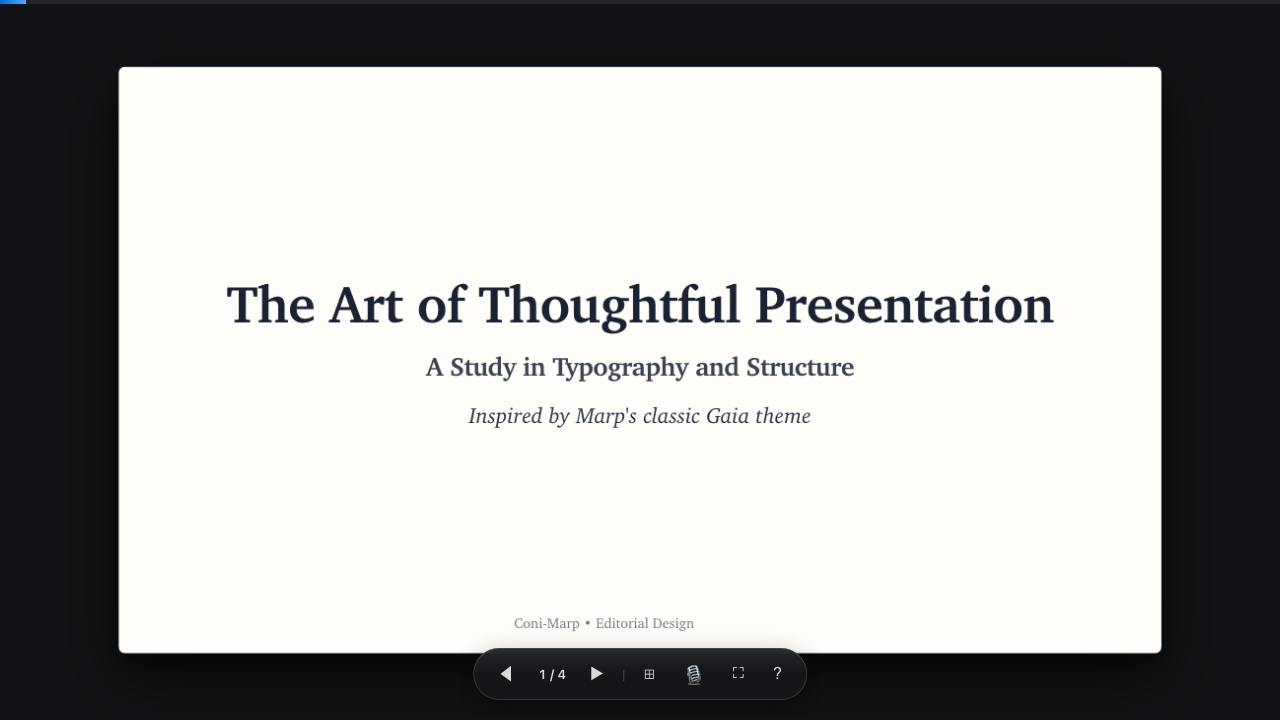
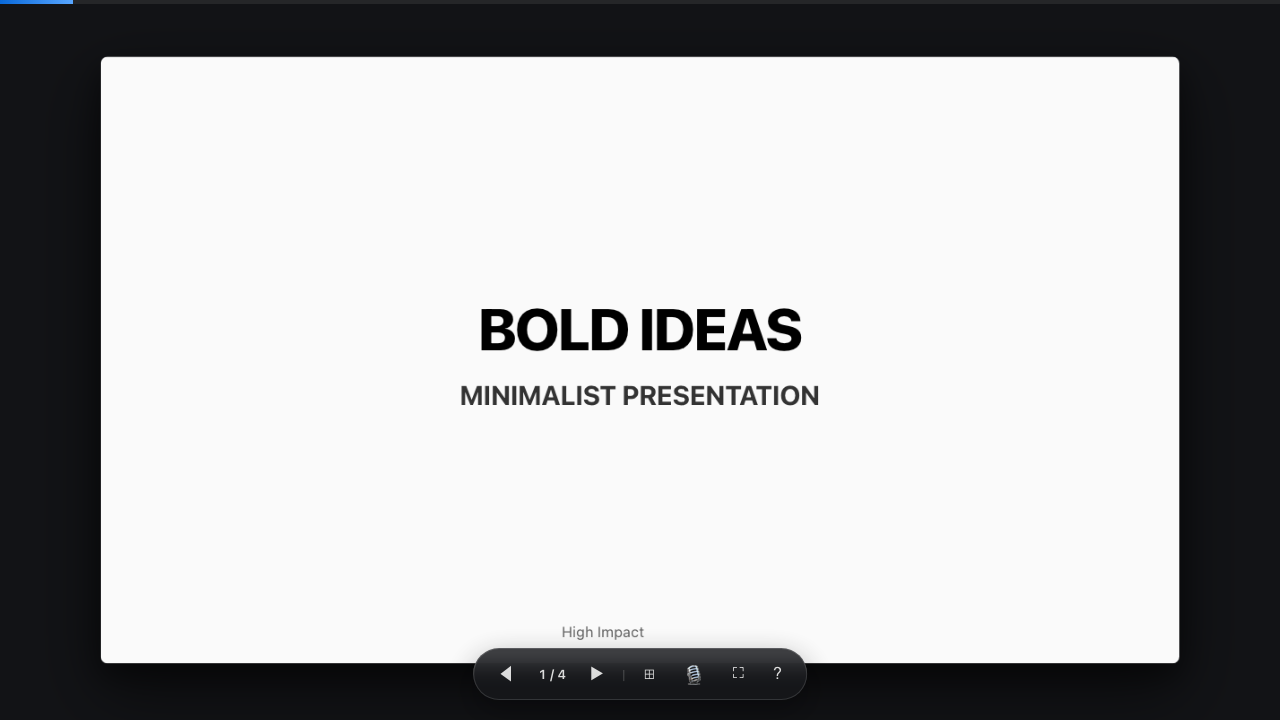
default: Clean, modern system sans-serif (Inter,SF Pro,Segoe UI) for crisp developer and technical decks.gaia: Inspired by classic editorial publishing. Soft#fffdf9warm paper canvas, crimson accents, and humanist serif hierarchy (Charter,Georgia).uncover: High-impact minimalist display theme designed for punchy keynotes and TED-style talks.nord: Arctic frost dark theme featuring cool icy blues and muted cyan highlights.dracula: High-contrast purple and cyan dark mode built for late-night terminal dwellers and code walk-throughs.
Look at the difference between gaia and uncover with zero CSS configuration—just changing theme: gaia or theme: uncover in frontmatter:
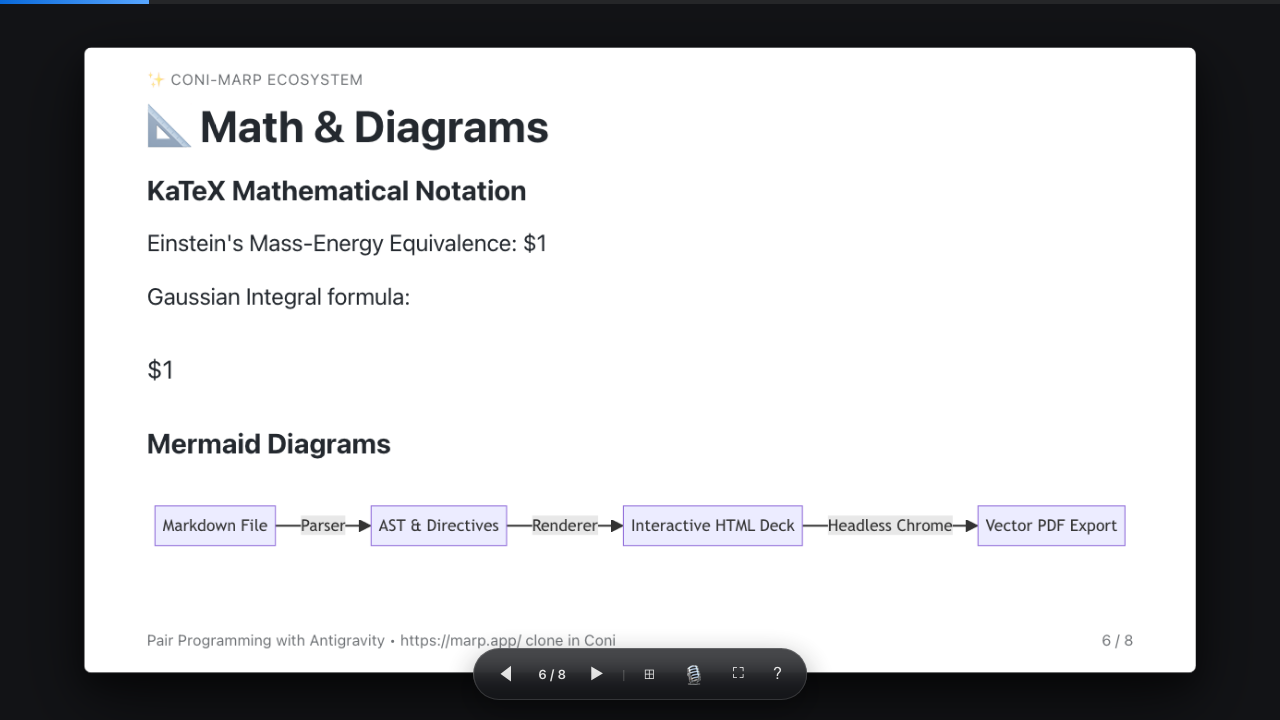
And for technical presentations, math equations and architecture diagrams render natively via KaTeX and Mermaid:
Act IV: The Stage View (Presenter Mode & Overview Grid)
Here is a universal conference truth: giving a presentation is stressful enough without having to guess what slide comes next.
We’ve all seen the speaker who taps the right arrow, looks at the screen, blinks in horror, and awkwardly mumbles: “Ah, wait, before this slide, let me mention something else…”
To fix this, Coni-Marp embeds a complete, zero-dependency presentation runtime directly inside the generated HTML:
1. Presenter Mode (P key)
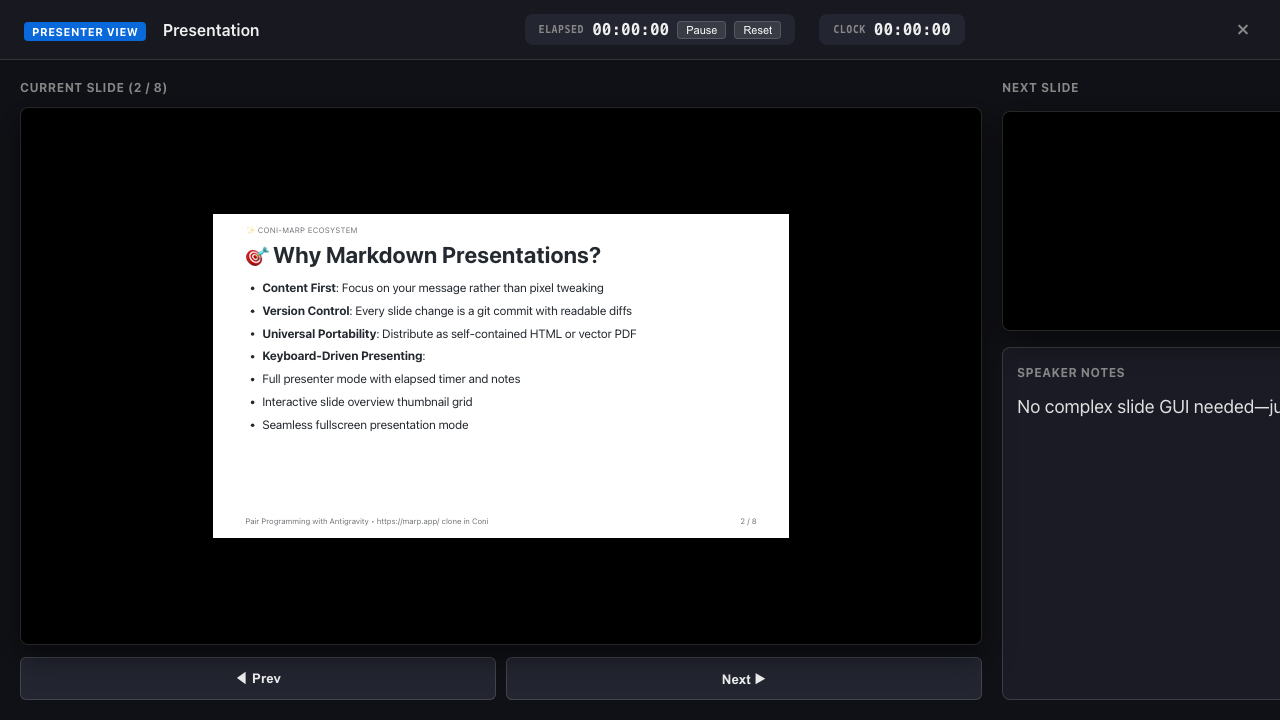
Hit P at any time to open the dual-pane Presenter Console:
- Elapsed Stopwatch: Big digital timer with Pause and Reset controls to keep you on schedule.
- Real-Time Clock: Local wall clock so you know if lunch is in 5 minutes.
- Current Slide View: Full-fidelity view of the active slide.
- Next Slide Preview: Instant peek into what’s coming up next so your transitions are silky smooth.
- Speaker Notes Pane: Displays all your private
Speaker Notes:comments, complete with+and-font zoom controls so you don’t have to squint at your laptop while holding a microphone.
2. Slide Overview Grid (O or G key)
Need to jump from slide 3 to slide 28 to answer an audience question? Don’t frantically tap PageDown 25 times while the crowd watches your slides blur past.
Hit O or G (or click the slide counter in the bottom control bar) to open the Slide Overview Grid:
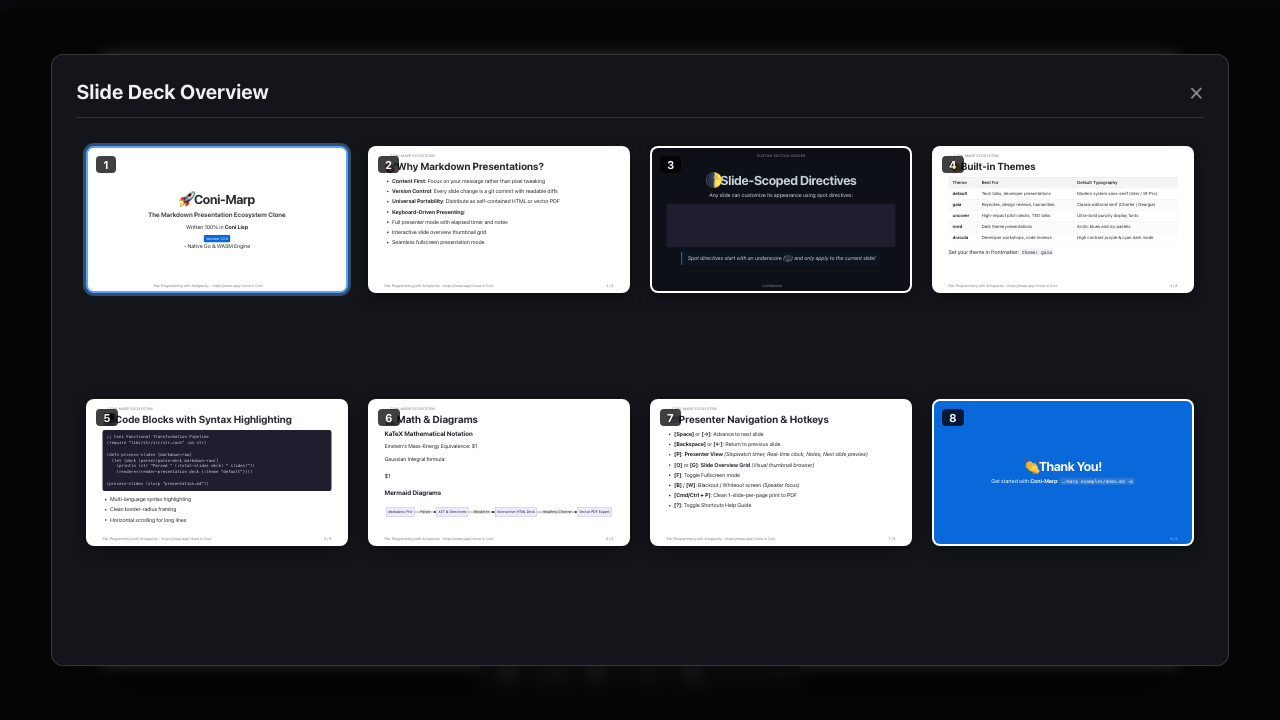
Every slide is rendered as a responsive thumbnail. The active slide is highlighted with an electric blue border, and clicking any slide teleports you there instantly.
3. The “Panic” Buttons (B and W)
If the projector glitches, or if the conversation pivots into an intense debate and you want everyone looking at you instead of staring at a bullet point:
- Tap
B: Instantly blacks out the screen. - Tap
W: Whites out the screen. - Hit any key or click to restore the deck.
Act V: Pixel-Perfect PDF Export (Without Printing Nightmares)
If you’ve ever tried to “Print to PDF” a standard web page, you know the horror: page breaks slice headings in half, margins shift by 30 pixels, and background colors disappear into washed-out white rectangles.
Coni-Marp solves this in two ways:
1. CSS @media print Paging Architecture
Every slide is bounded by strict vector page rules:
@media print {
  @page {
    size: 960px 540px;
    margin: 0;
  }
  body {
    background: transparent !important;
  }
  .marp-slide {
    page-break-after: always;
    break-after: page;
    width: 960px !important;
    height: 540px !important;
  }
}
When you hit Cmd+P or Ctrl+P in any modern browser, each slide prints to an exact, unclipped 16:9 vector page.
2. Headless Chrome CLI Pipeline
Don’t want to open a browser at all? Just add --pdf:
# Export presentation directly to vector PDF
./marp presentation.md --pdf

# Export a 2-slide-per-page handout for meetings
./marp presentation.md --pdf --slides-per-page 2 -o handout.pdf
The CLI automatically detects Google Chrome, Chromium, or Brave, launches headless rendering, and generates the PDF file silently in the background in less than a second.
Try It Out
The entire marp application is now live in the coni-cli-apps repository:
# Clone the repository
git clone gitea:coni-lang/coni-cli-apps.git
cd coni-cli-apps/marp

# Initialize a starter presentation
./marp init my-talk.md

# Start the live preview server with automatic browser launch
./marp my-talk.md -p

# Export to PDF when you are ready to present
./marp my-talk.md --pdf
No node_modules cratering your hard drive. No JavaScript dependency drift breaking your slides three years from now. Just plain Markdown, a bit of functional Lisp, and the sheer joy of knowing that your entire presentation stack is under 2,000 lines of readable code.
PowerPoint, you can go to sleep now. We’re good.